
STEP BY STEP
From request to decision. Every step visible.
Follow a sample temporary admin session from an employee's request to its end.
HOW IT WORKS
A user needs access.
IT stays in control.
A user submits a request. An administrator makes a decision, and the process remains visible in the console.
Talk to us about your environment- 01
Request
A user asks for temporary access or to run a file.
- 02
Decision
IT reviews the request and determines the next step.
- 03
History
The console records the request and related events.
TEMPORARY ADMINISTRATOR RIGHTS / WORKFLOW
From request to automatic expiry.
An employee requests access, IT makes a decision, and the rights last for the approved period. This is how the process works for both sides.
- 01 / 06
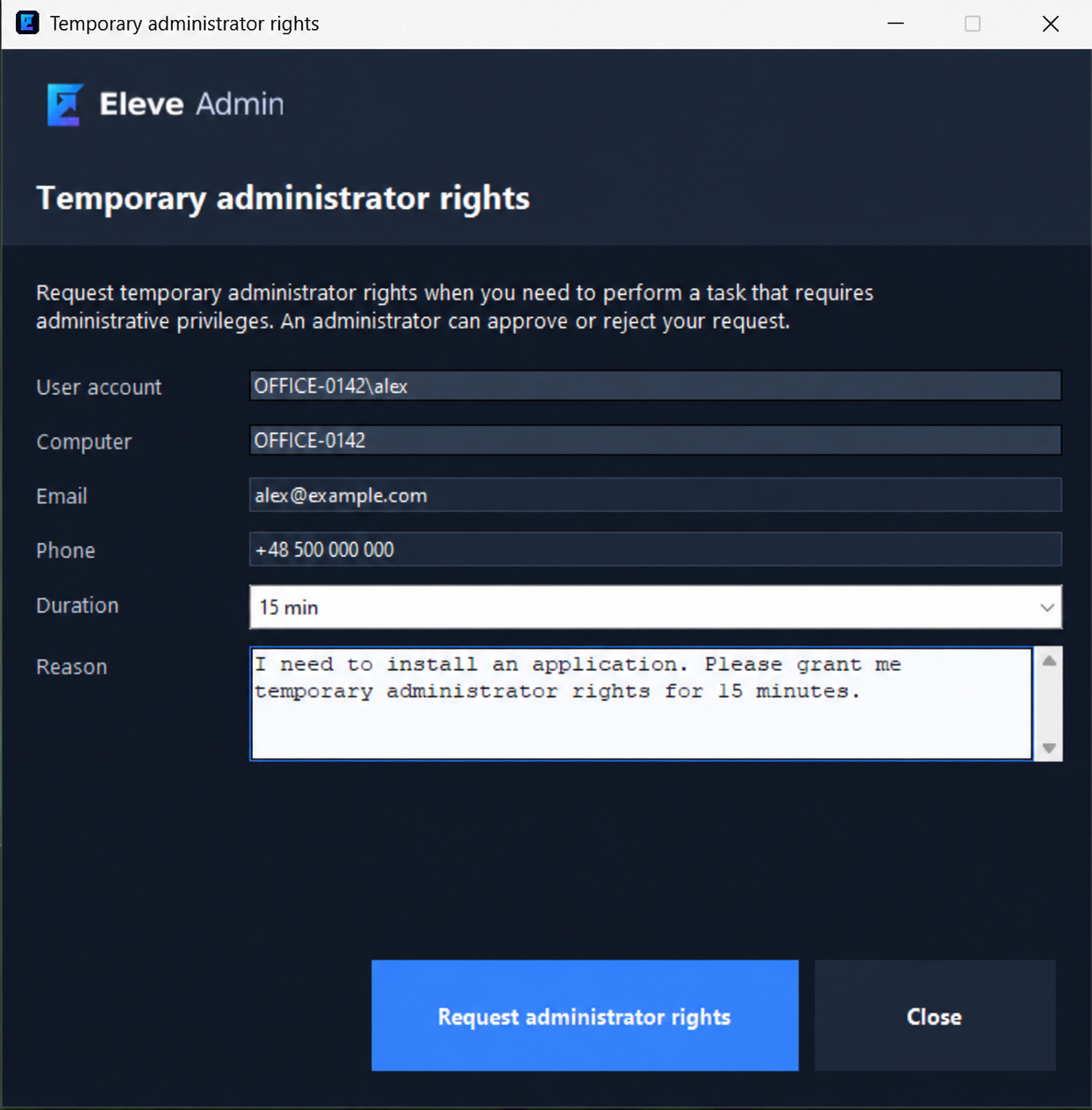
The employee sends a request
On the computer, they provide a reason and requested duration. The request goes to the tenant administrators.
Open full-size view - 02 / 06
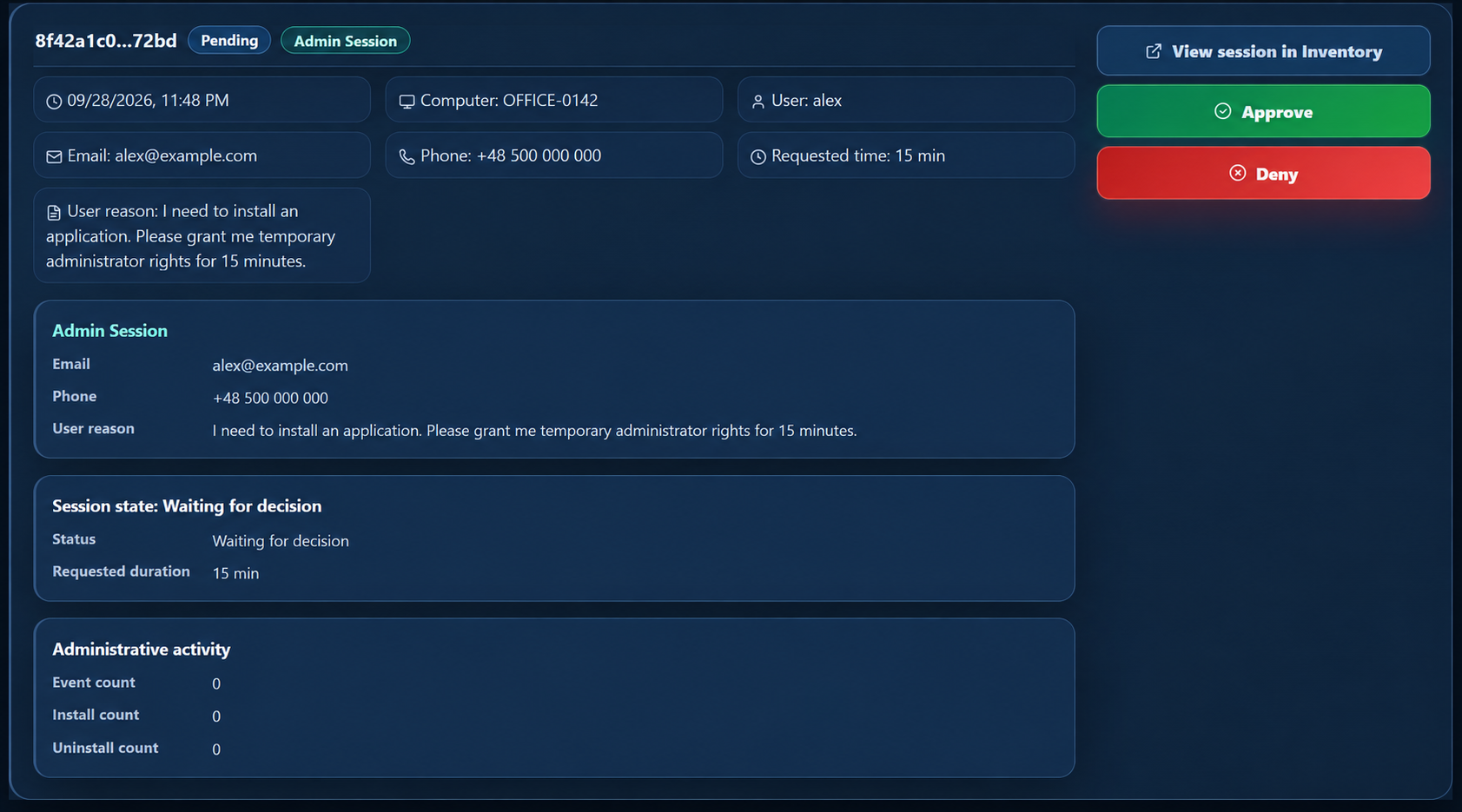
An administrator reviews it
The panel shows the reason, user and device. The administrator can approve it or reject it with a comment.
Open full-size view - 03 / 06
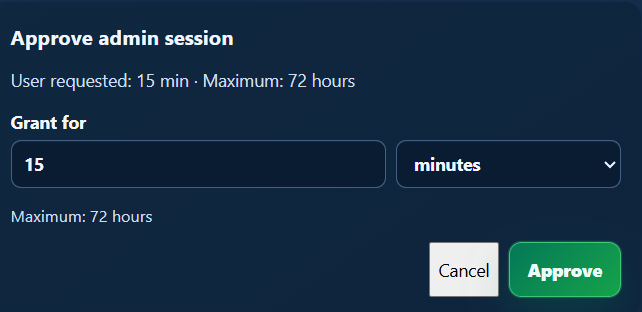
The administrator sets the duration
On approval, they choose how long the rights last. The employee receives the decision.
Open full-size view - 04 / 06
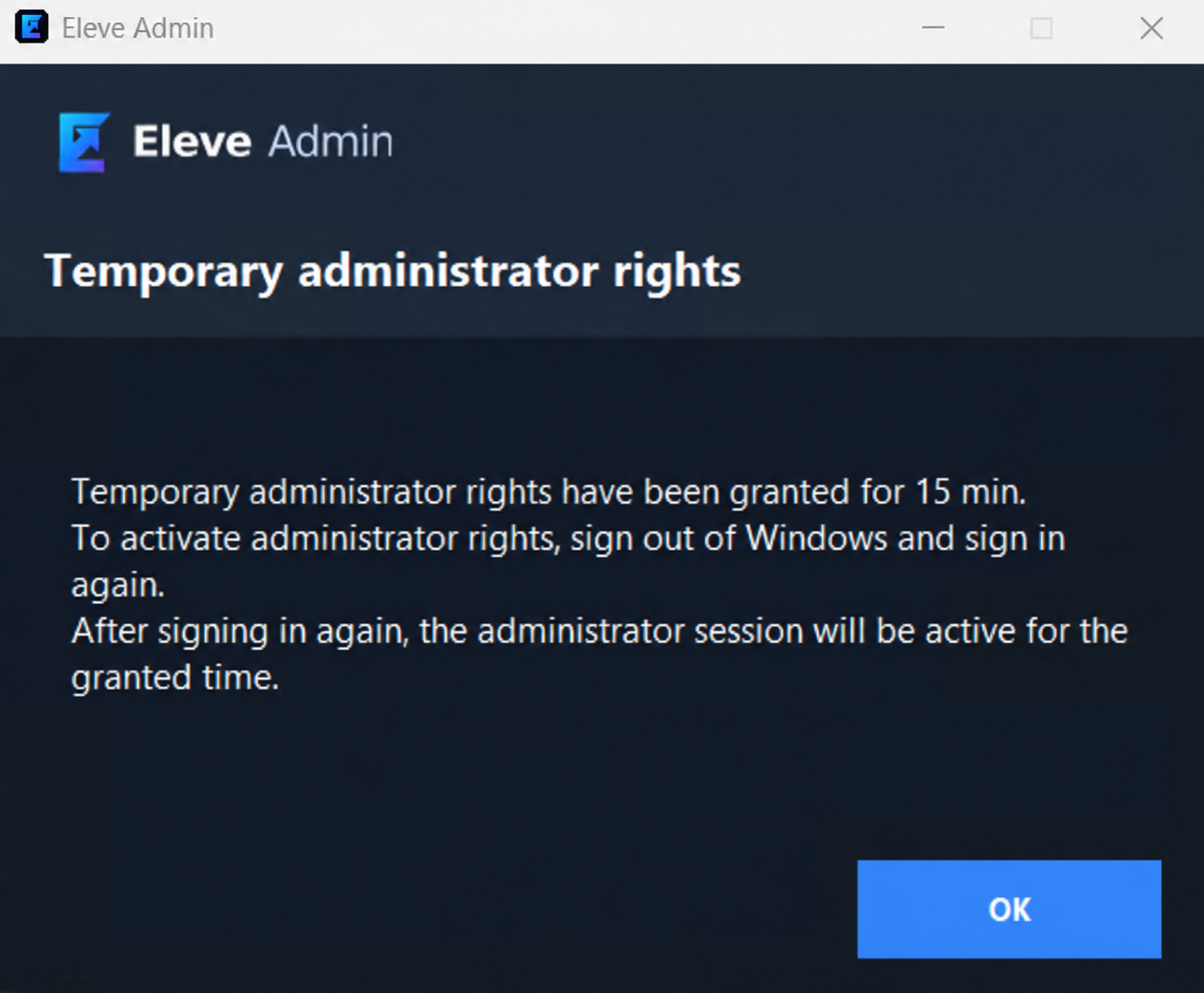
The employee activates the rights
After approval, an on-screen notice explains the next step. The employee signs out of Windows and back in.
Open full-size view - 05 / 06
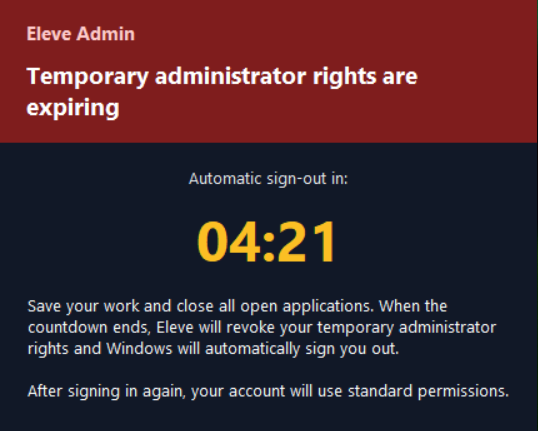
The system warns before expiry
A countdown appears five minutes before the rights expire, allowing time to save work before automatic sign-out.
Open full-size view - 06 / 06
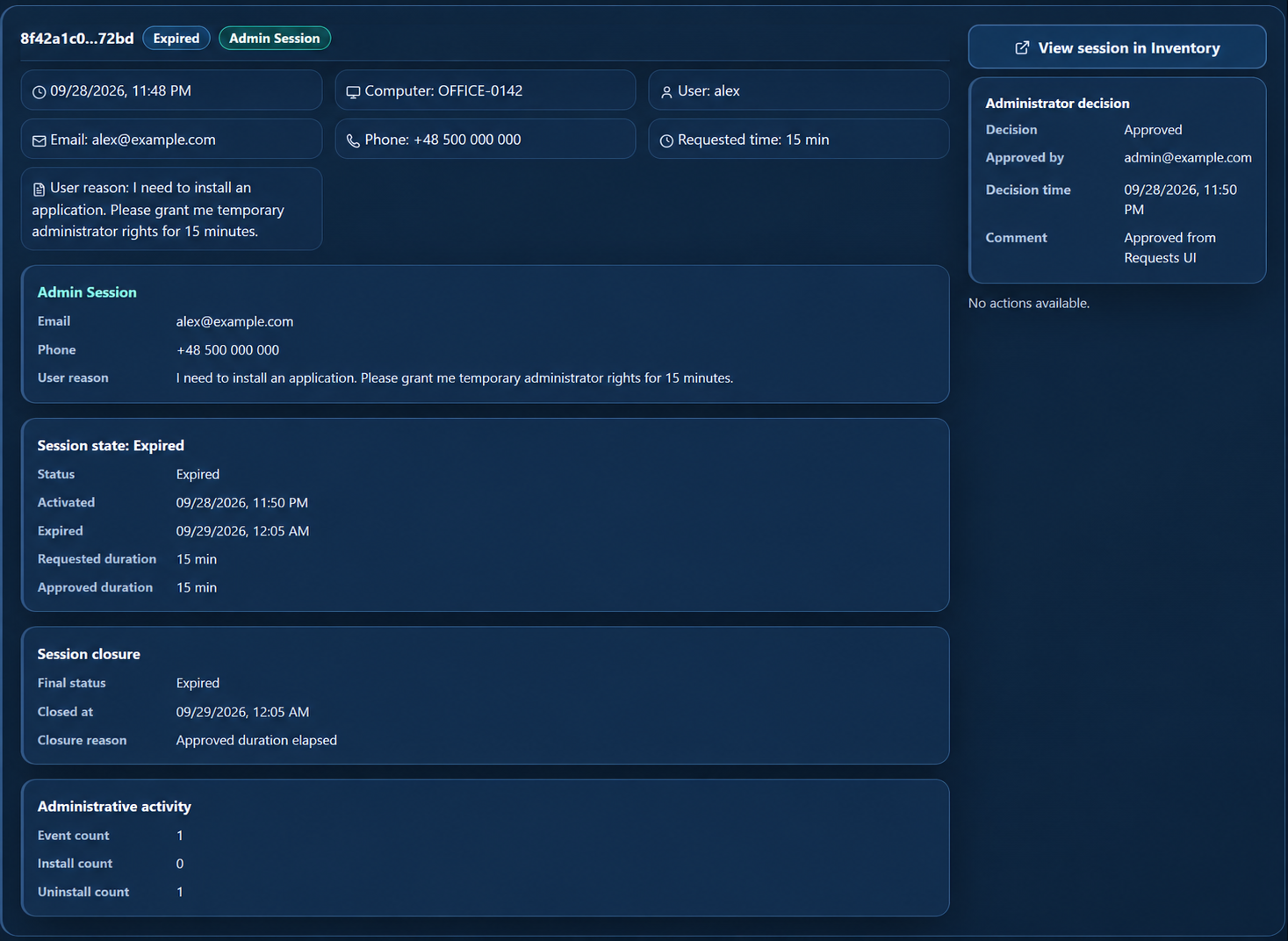
The session expires and stays in history
After signing in again, the employee has standard permissions. The administrator can review the decision, timing and recorded activity, including installs and removals.
Open full-size view
Interface screenshots are in English; identifying details have been replaced with sample values.